Firestick Not Allowing Unknown Apps? How to Fix it in 2026
Why Firestick Not Allowing Unknown Apps Happens
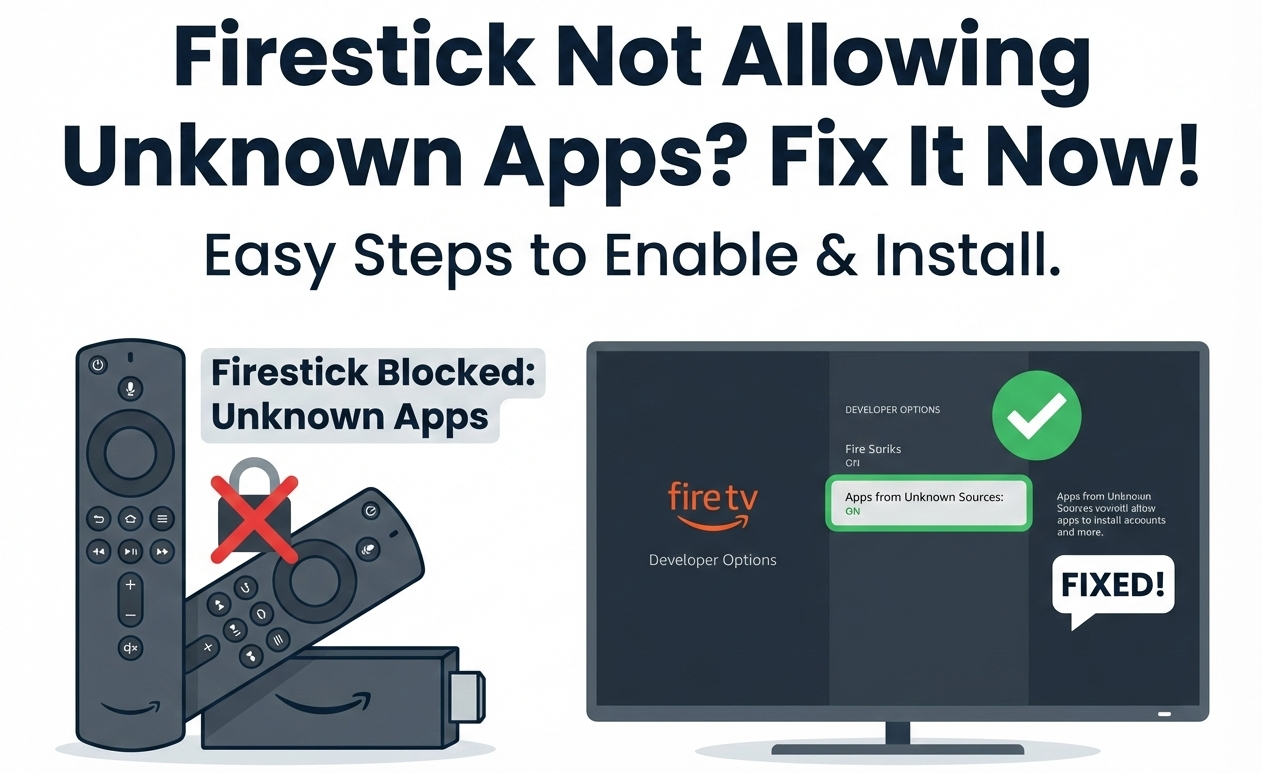
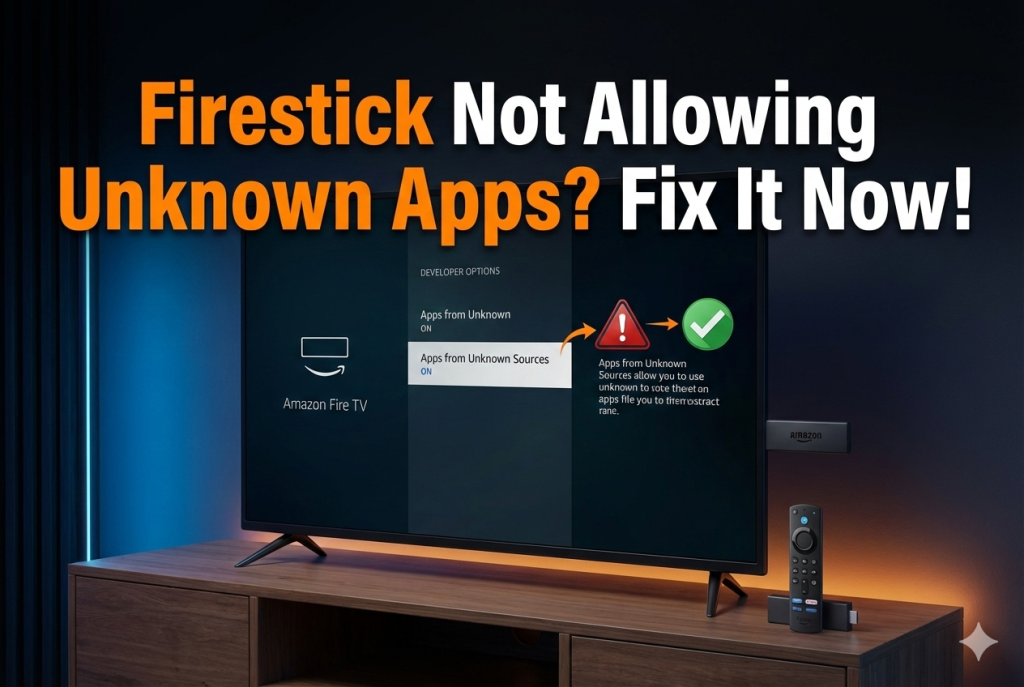
If you’re seeing the Firestick Not Allowing Unknown Apps issue, you’re not alone. This problem typically appears after a Fire OS update, a factory reset, or when Amazon hides Developer Options by default.
Amazon’s Fire TV devices are designed to prioritize security. By default, they prevent installation of apps outside the Amazon Appstore. That’s why Firestick Not Allowing Unknown App is often a protective setting—not necessarily an error.
Common causes include:
Developer Options hidden in newer Fire OS versions
Install Unknown Apps disabled
Outdated Fire OS firmware
Restricted profiles or parental controls
Corrupted settings after updates
Understanding why Firestick Not Allowing Unknown Apps occurs helps you fix it correctly instead of trying random solutions that don’t work.
What Works: Step-by-Step Fix for Firestick Not Allowing Unknown Apps
If your Firestick Not Allowing Unknown App issue is blocking installations, follow these proven steps.
Step 1: Enable Developer Options
Newer Firestick models hide Developer Options by default.
Go to Settings
Select My Fire TV
Click About
Highlight Fire TV Stick and click it 7 times
You’ll see a message confirming Developer Options are enabled.
This single step solves many Firestick Not Allowing Unknown App problems immediately.
Step 2: Turn On Install Unknown Apps
Once Developer Options appear:
Go to Settings
My Fire TV
Developer Options
Select Install Unknown Apps
Choose the app (like Downloader)
Turn it ON
If Firestick Not Allowing Unknown Apps persists, continue below.
Step 3: Update Fire OS
Sometimes Firestick Not Allowing Unknown Apps happens due to outdated firmware.
Go to Settings
My Fire TV
About
Check for Updates
Install updates and restart your device.
Step 4: Restart or Factory Reset (If Necessary)
If Firestick Not Allowing Unknown App continues:
Restart your Firestick
Or perform a factory reset (last resort)
After resetting, repeat Steps 1 and 2.
Step 5: Install Downloader App
To sideload apps safely:
Open Amazon Appstore
Install Downloader
Enable Downloader under Install Unknown Apps
Now your Firestick Not Allowing Unknown Application issue should be completely resolved.
Why 4K IPTV Smarters Is the Best Option After Fixing the Issue
Once you fix Firestick Not Allowing Unknown Apps, the next question becomes: which app should you install?
Among IPTV platforms, 4K IPTV Smarters stands out for several reasons.
1. True 4K Streaming Support
Many IPTV apps claim 4K compatibility. 4K IPTV Smarters delivers smooth Ultra HD playback with minimal buffering when paired with a stable connection.
2. User-Friendly Interface
The layout is clean, fast, and optimized for Firestick remote navigation.
3. Multi-Screen and EPG Integration
You get:
Live TV
VOD
Series
Electronic Program Guide
All organized for easy browsing.
4. Stable Performance
After resolving Firestick Not Allowing Unknown Apps, users want an app that works consistently. 4K IPTV Smarters is known for stable performance and quick channel loading.
5. Compatibility
It works seamlessly with:
Firestick 4K
Fire TV Cube
Android TV
Android smartphones
That flexibility makes it a strong choice after fixing Firestick Not Allowing Unknown Apps.
Trade-offs: Security vs Flexibility
When dealing with Firestick Not Allowing Unknown Apps, you’re essentially balancing security and customization.
Security Benefits of Blocking Unknown Apps
Prevents malicious APK installations
Reduces malware risk
Protects user data
Benefits of Enabling Unknown Apps
Install IPTV apps
Access beta software
Expand streaming options
The key is installing apps from trusted sources only. Firestick Not Allowing Unknown Apps is a security feature—but once configured responsibly, it unlocks powerful functionality.
Next Steps: Safe Setup Checklist
After fixing Firestick Not Allowing Unknown Apps, follow this checklist:
Keep Fire OS updated
Only download apps from verified sources
Avoid suspicious APK links
Use secure internet connection
Periodically review installed apps
With Firestick Not Allowing Unknown Apps resolved, your device becomes far more versatile.
Micro-FAQs
Why is Firestick Not Allowing Unknown Apps even after enabling Developer Options?
You may need to toggle Install Unknown Apps specifically for the Downloader app or restart your device after enabling settings.
Is it safe to fix Firestick Not Allowing Unknown Apps?
Yes, if you only install trusted applications and avoid suspicious APK files.
What is the best app to install after fixing Firestick Not Allowing Unknown Apps?
4K IPTV Smarters is one of the best choices due to 4K support, smooth streaming, and a user-friendly interface.
The firestick disabled unlicensed content notification isn’t random. Amazon actively monitors apps on Fire TV devices to ensure they comply with copyright laws and its
When people search for IPTV Smarters Xtream Codes Login Explained, they usually want one thing: clarity. IPTV can feel technical at first. There are server
Experience Television in True 4K Ultra HD
Watch live sports, news, and movies from around the world in stunning 4K quality. Affordable plans